


For guests. Page: any retreat results page, for example after you press the red search button on the home page.
Once you've searched, the results page has four ways to narrow the list. They all sit at the top of the page, under the heading (for example "Wellness Retreats Worldwide"), and above the retreat cards. You can use them in any order, and you don't need an account.
Show only one type of retreat
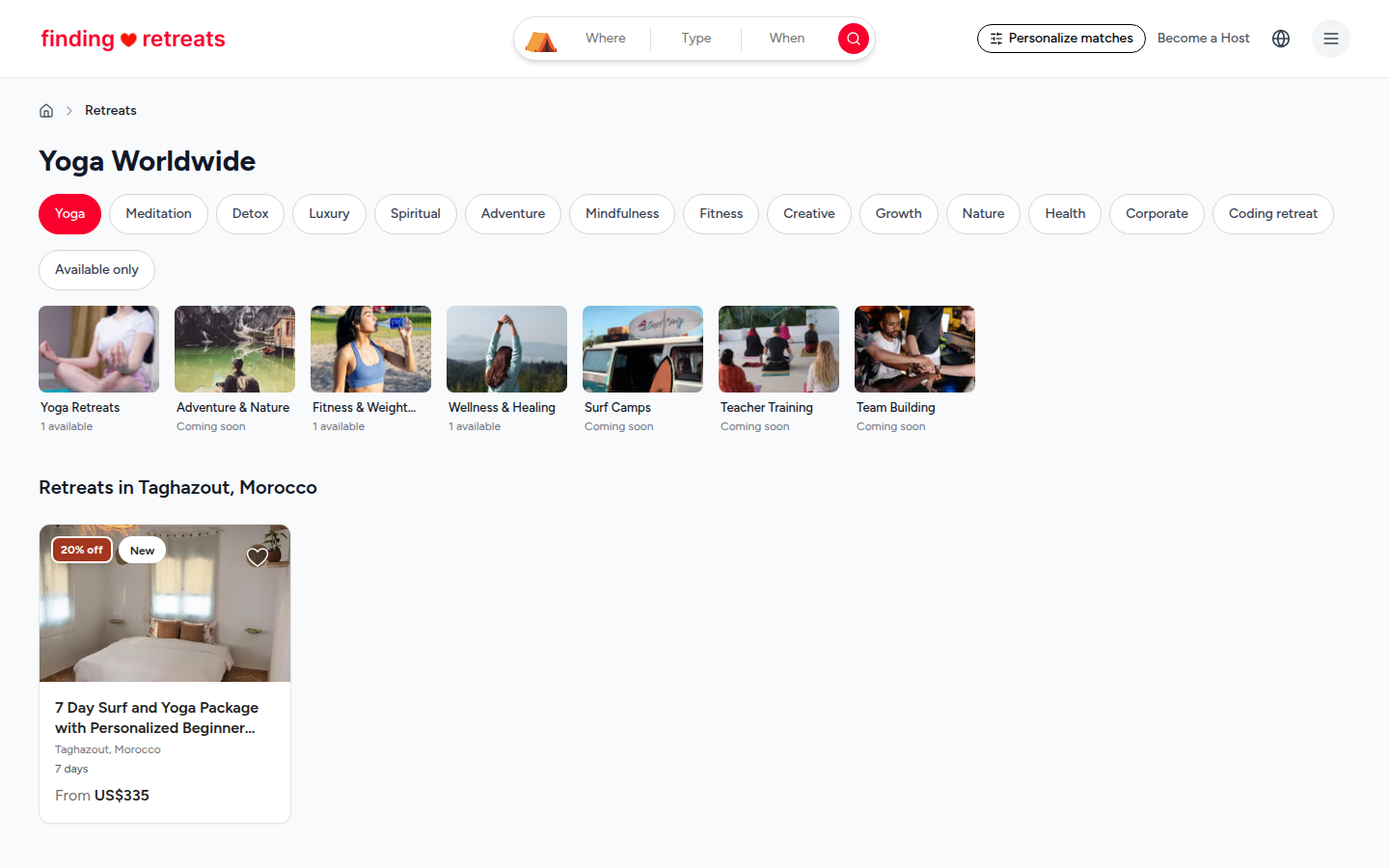
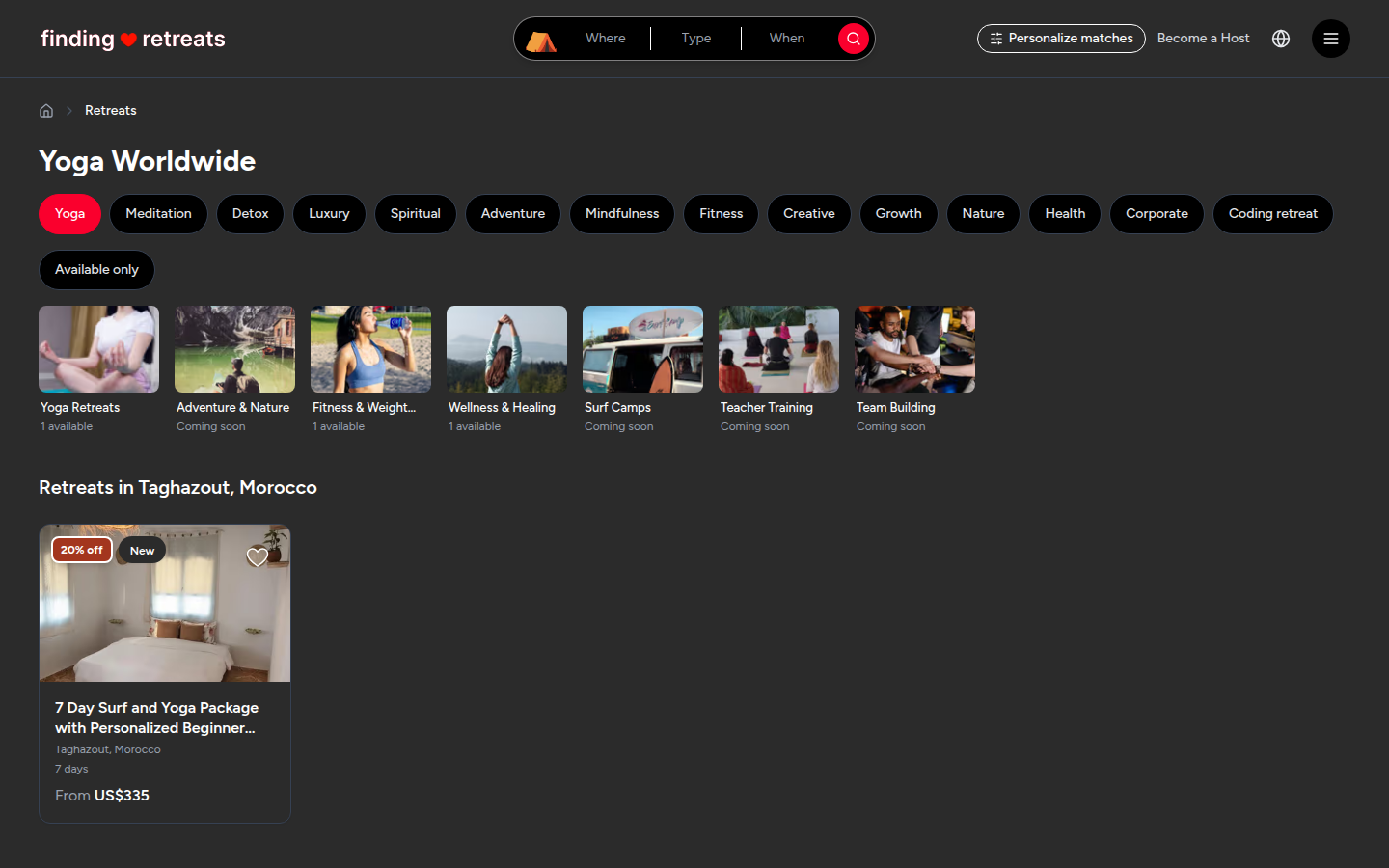
Look for the row of rounded buttons just under the page heading: Yoga, Meditation, Detox, Luxury and so on.
Click a type, for example Yoga. It turns red to show it's on, and the list below changes to show only yoga retreats.
To add another type, click it too. You'll now see retreats of either type.
To remove a type, click its red button again. It goes back to white.
There are more types than fit on the screen. On a computer, click the small arrow at the right end of the row to see more. On a phone or tablet, slide the row sideways with your finger.
Hide retreats that are fully booked
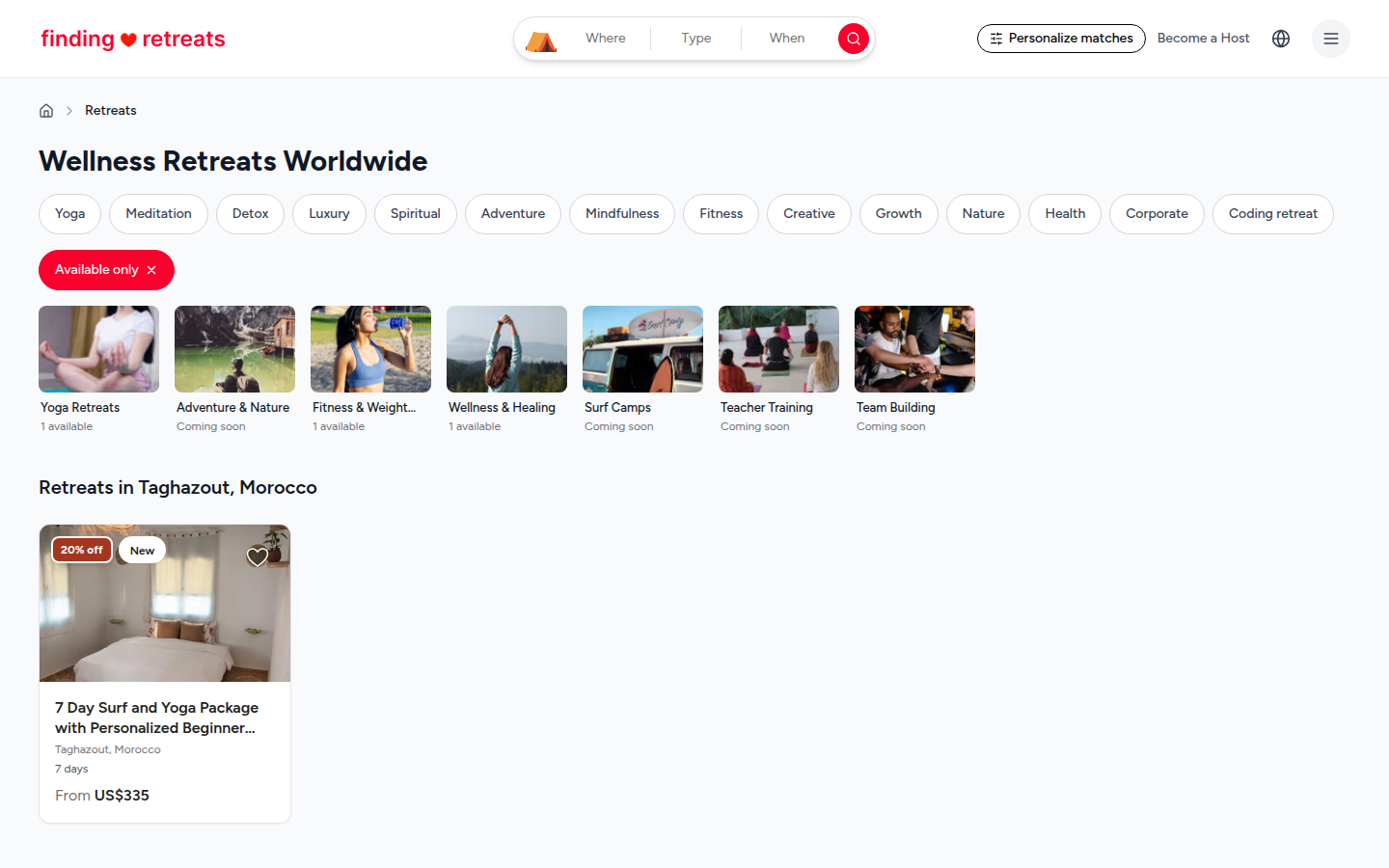
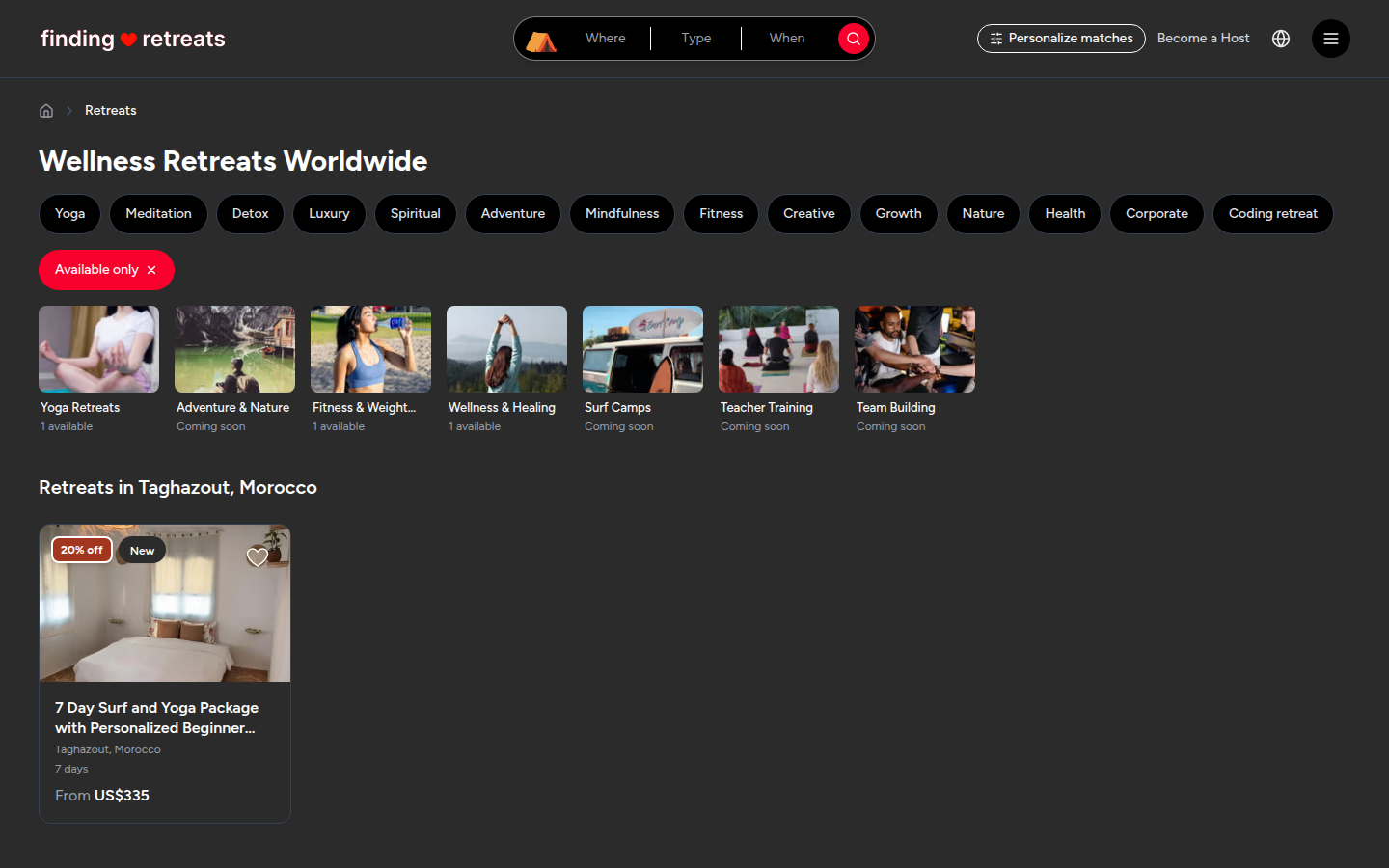
Find the Available only switch, just under the row of type buttons.
Click it. It turns red with a small ×, and retreats with no places left disappear from the list. The line above the cards shows how many are left (for example "3 retreats").
Click it again to turn it off and see every retreat.
Browse a collection
Under Available only is a row of small picture cards, such as Yoga Retreats, Surf Camps and Teacher Training. Each card says how many retreats are in it, or "Coming soon" if it's empty for now.
Click a card. The page heading changes to the collection's name (for example "Yoga Retreats Worldwide"), the card gets a thin outline, and the list shows only that collection.
Click the same card again to go back to all retreats. You can also start from a type or collection on the home page. See How do I browse retreats by type or collection?
Put the best matches first
On a computer or tablet, click Personalize matches at the top right of the page, to the left of the globe. (On a smaller computer screen it just says Personalize.) On a phone, tap the small round button at the top right of the screen, next to the globe.
A Personalize matches window opens with a set of sliders, one for each thing that can make a retreat suit you. Drag each slider to what you like. Untick anything that doesn't matter to you (keep at least two ticked).
Press Save preferences at the bottom of the window. Your choices are saved on this device only.
The window closes and the list is re-ordered so the retreats that fit you best come first. A line above the results says "sorted by fit for you".
To go back to the normal order, click Show our usual order on that line. Click Sort by fit for you to switch back again.
Good to know
Everything you choose is saved in the page address. Bookmark the page or copy the link to come back to the same list later.
To change the place or dates, use the search bar at the top of the page. See How do I search for retreats?
If no retreats show, click a red type button to turn it off, turn off Available only, or click the outlined collection card to remove it.
Common questions
Can I filter by price, length, facilities or language?
Not yet. The type buttons, dates, Available only and collections are the filters we have today. Each retreat card shows the starting price and number of days, and the retreat page lists facilities and the languages the host speaks.
Can I set how many guests are coming?
Not in search. You choose the number of guests on the retreat's page, when you pick a room.
Still stuck? Message us. On a computer or tablet, click the round menu button with three lines at the top right of the page and choose Messages. On a phone, tap Messages in the bar at the bottom of the screen. Change All to Support above your conversations, then press Contact Support.
Related: How do I search for retreats? · What's on a retreat page? · How do I save a retreat to my wishlist?