


Team access lets a co-host, assistant or booking manager sign in with their own email and work on bookings, messages and the calendar with you. They never see your listings, payouts or business settings.
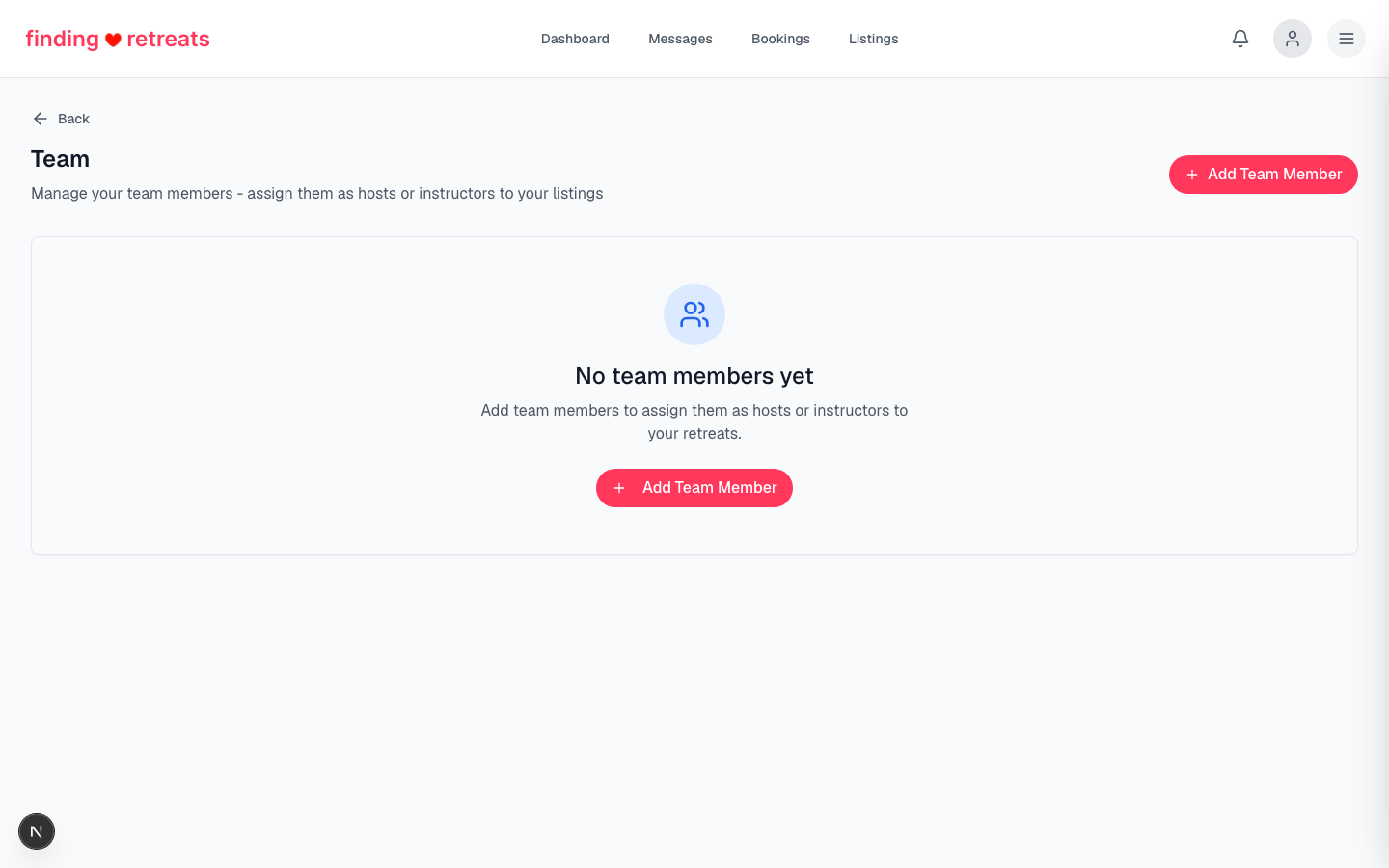
Invite a team member
Open
in your host dashboard.
Click
Invite a team member
.
Enter their email address and choose a role:
Manager
or
Staff
(see below).
Click
Send invite
. They appear in the list with the status
Invited
.
They receive an email from Finding Retreats with a secure sign-in link. Clicking it signs them in and adds them to your team, and their status changes to
Active
. If they don't have a Finding Retreats account yet, one is created for them automatically.
Roles
Owner
— you. Full access to everything, including listings, payouts, business details and tax settings. There is exactly one owner per host account.
Manager
— bookings and booking requests, guest messages, calendar and the sales overview. Can also invite and remove team members and change their roles.
Staff
— bookings and booking requests, guest messages, calendar and the sales overview. Cannot manage the team.
Neither Managers nor Staff can create or edit listings, or see payouts, bank details, business details or tax information.
Change someone's role
On the Team access page, pick the new role from the dropdown next to their email. The change applies straight away.
Tips
If the invite email doesn't arrive, ask them to check spam, then send the invite again to the same address. A fresh sign-in link is issued each time.
Someone who already runs their own host account on Finding Retreats can't join your team with that email. Invite a different address instead.
The Team section on a listing (teachers and facilitators shown to guests) is separate from Team access. Adding someone there does not give them a login.