


Your retreat host dashboard is where every booking, request, message and payout lands. This is what you will see in the sidebar when you sign in, in order.
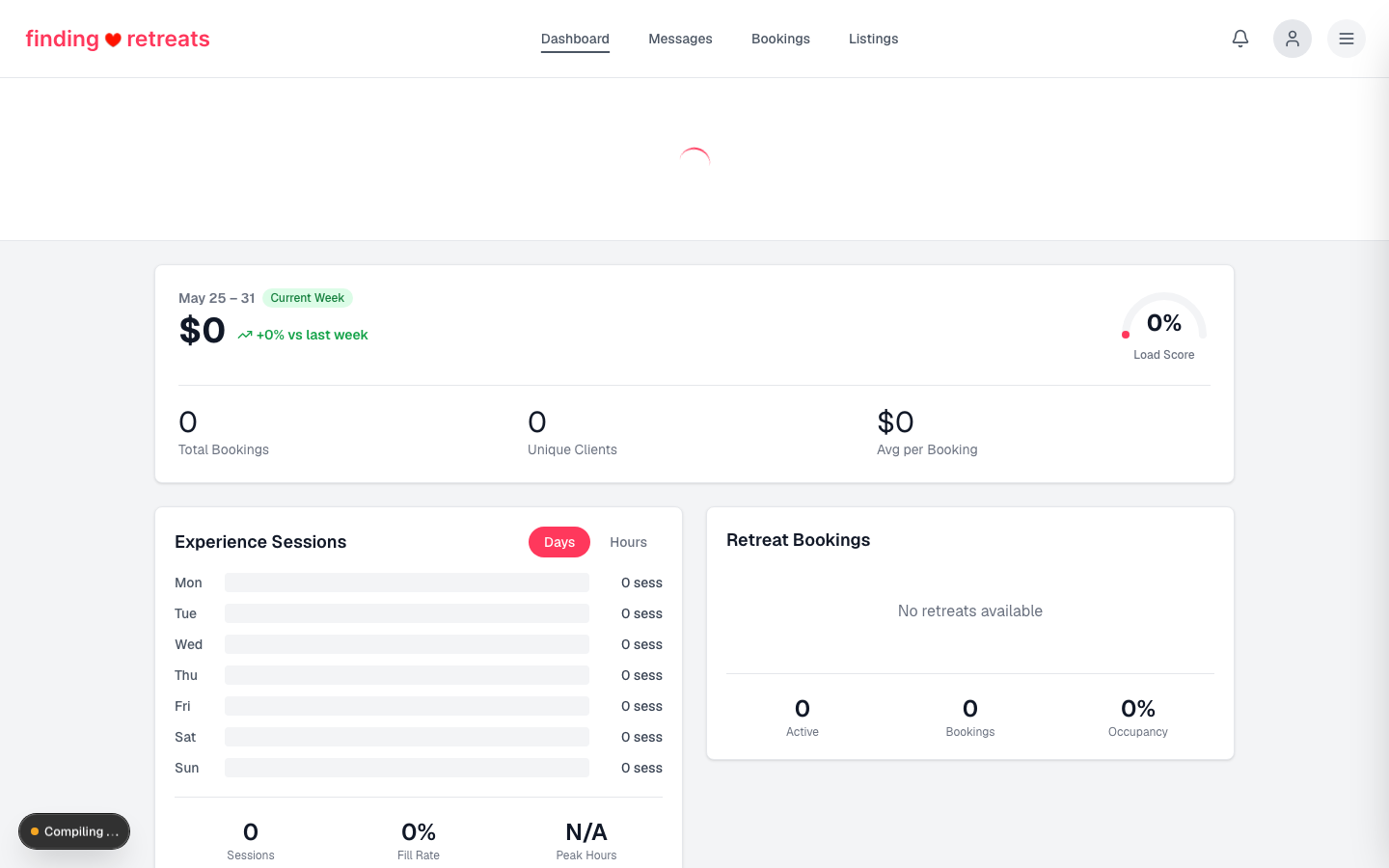
The sidebar, top to bottom
Dashboard
— a weekly summary of your bookings.
Sales
— your bookings: who is coming, what they paid and what you are paid.
Booking requests
— requests from guests on rooms set to request-to-book, waiting for your answer.
Payouts
— your payouts. You are paid the day after the retreat starts.
Calendar
— bookings, synced iCal events and blocked dates in one view.
Messages
— conversations with guests, before and after they book.
Listings
— add, edit, suspend or remove listings.
Properties
— your properties and the rooms inside them, each with its own price.
Team
— public instructor profiles shown on your listing.
Team access
— logins for your co-host, manager or staff, with their own role.
Social marketing
— ready-to-post social media text for each published listing, with click tracking.
Guest reviews
— rate your guests after a completed booking.
Notifications
— your notifications.
Profile
— your host profile.
Account settings
— your account settings.
What your team sees
Invited team members get a shorter sidebar. Listings, payouts, profile and account settings stay with the owner.
Manager
— Sales, Booking requests, Calendar, Messages, Team access.
Staff
— Sales, Calendar.
Both roles land on Sales when they sign in, not on the weekly summary.
Open your dashboard
Sign in to Finding Retreats.
Click your avatar and choose
Dashboard
.